




Tivoli Model One (Gen 2) Digital Table Top Streaming Radio with FM and Bluetooth
We are an authorized Tivoli dealer!
Email Your Question
Pairs well with
Free Shipping
We only ship within Canada. Items purchased online qualify for free shipping!
30 Day Returns
All products are eligible for returns within 30 days. All original packaging is required.
Installation & Calibration
Ask about our installation services on home theatre & stereo equipment along with automation.
Tivoli Model One (Gen 2) Digital Table Top Streaming Radio with FM and Bluetooth
Overview
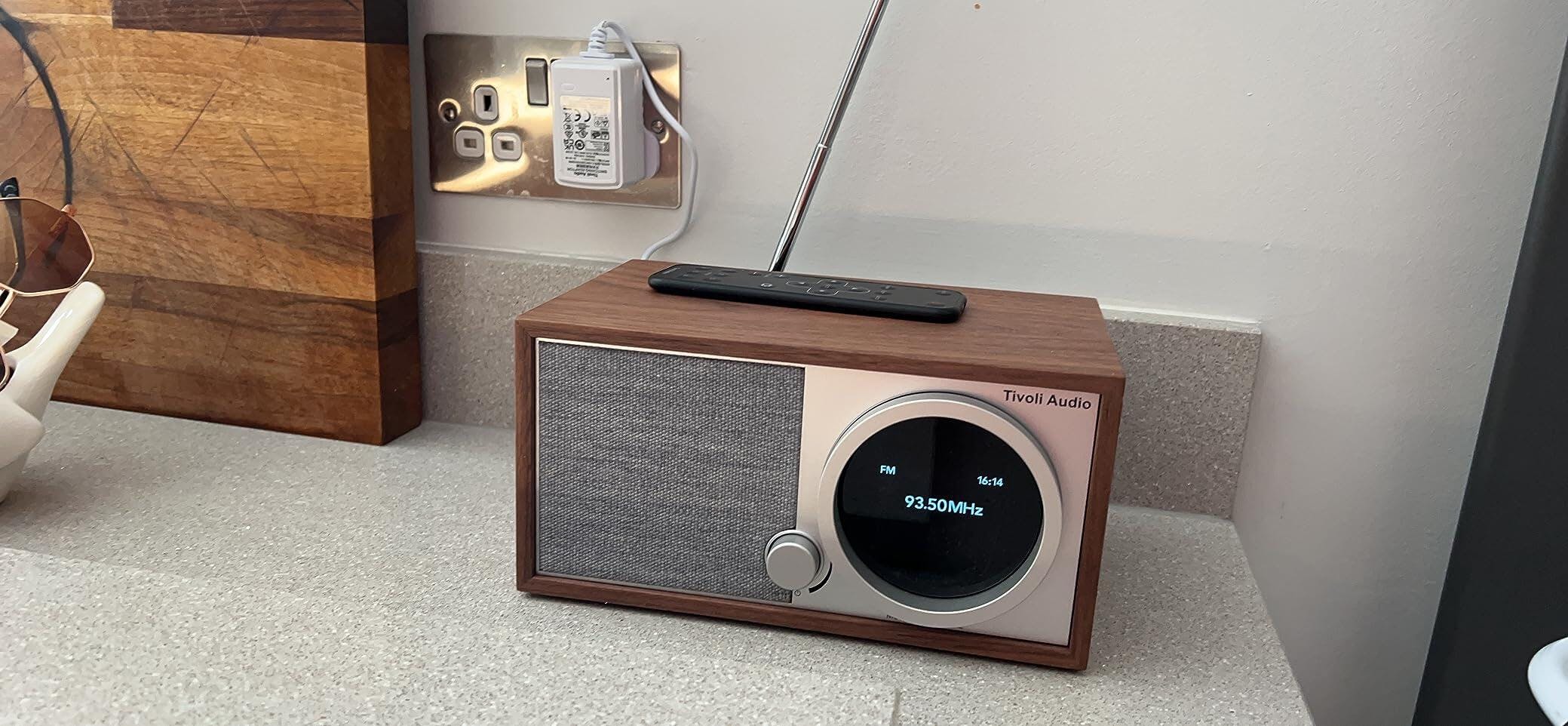
The Tivoli Audio Model One Digital (Gen 2) is a tabletop radio that pairs Tivoli's classic cabinet design with built-in Wi-Fi streaming, so you get modern connectivity without giving up the simple, dial-driven controls Tivoli is known for.
Wi-Fi comes with AirPlay 2 built in and works with Google Cast, so you can stream from Spotify, Apple Music, Tidal, Deezer, Pandora, TuneIn, and any other AirPlay 2 or Google Cast enabled app, plus direct Spotify Connect support. When you'd rather not use Wi-Fi, DAB+/FM radio (DAB+ where available in your market) and Bluetooth streaming cover the rest, and a 3.5mm aux input handles any wired source.
It's built with a real wood cabinet and fabric speaker grille, comes with a full-function remote for presets, alarms, and sleep timer, and updates its own firmware automatically over Wi-Fi.
Simcoe Audio Video Insight
We recommend the Model One Digital Gen 2 for a kitchen, bedroom, or office where someone wants one simple box that covers Wi-Fi streaming, FM/DAB+ radio, and Bluetooth without adding a soundbar or separate speaker. It's also a natural first step for a client who wants a taste of AirPlay 2 or Google Cast streaming before committing to a larger multi-room system.
More Info
Why the Model One Digital (Gen 2) Stands Out
Built-In Wi-Fi with AirPlay 2 and Google Cast
Stream directly from Spotify, Apple Music, and any other AirPlay 2 or Google Cast enabled app over your home Wi-Fi network.
DAB+/FM Radio Tuner
Tune into local FM broadcasts, or DAB+ digital radio where available in your market, with Tivoli's well-regarded reception.
Bluetooth Wireless Streaming
Pair a phone, tablet, or computer over Bluetooth for wireless playback without connecting to Wi-Fi.
Spotify Connect Support
Use your phone as a remote control for Spotify once the unit is set up on Wi-Fi through AirPlay 2 or Google Home.
Full-Function Remote with Alarm and Sleep Timer
Set the clock, alarm, and sleep timer, or manage radio presets, all from the included remote.
Real Wood Cabinet with Fabric Speaker Grille
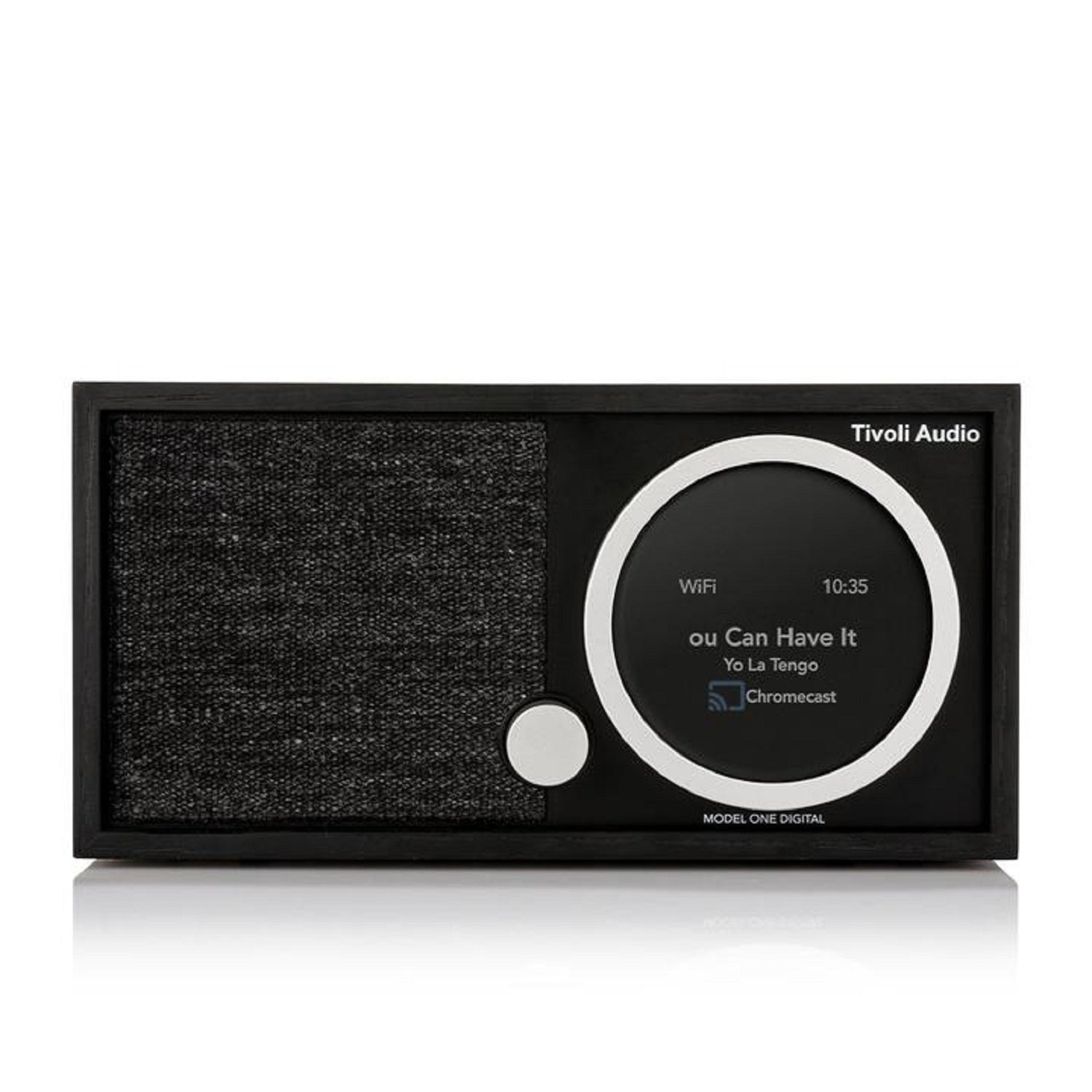
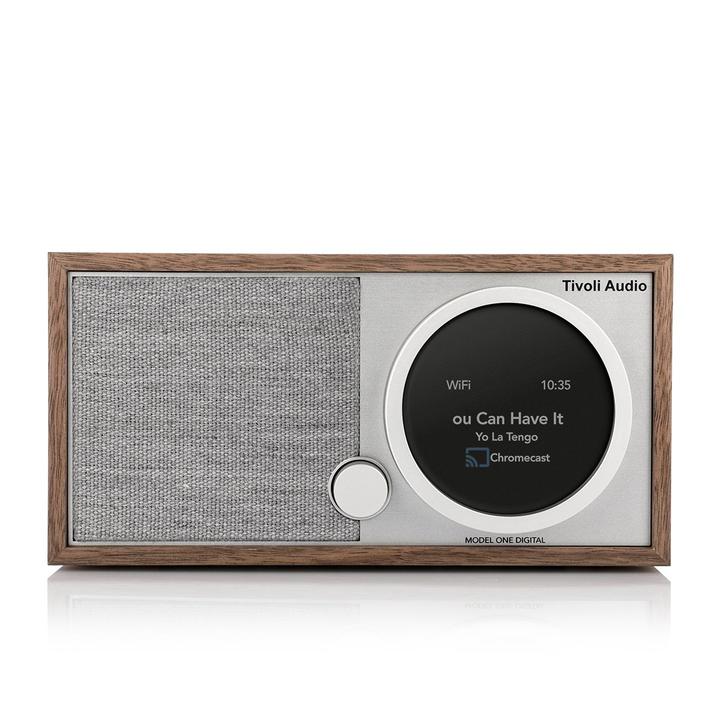
A genuine wood cabinet and fabric grille give it the classic Tivoli look, available in White/Grey or Black Ash/Black.
Automatic Firmware Updates
The unit checks for and installs firmware updates on its own over Wi-Fi roughly every four months, with no action needed from you.
Buyer's Guide
Who It's For
- Streaming-First Listeners: AirPlay 2, Google Cast, and Spotify Connect support cover most modern streaming needs without a separate speaker.
- Bedroom and Kitchen Radio Listeners: A compact, one-box unit that handles DAB+/FM, Bluetooth, and Wi-Fi streaming plus an alarm clock.
- Classic-Design Enthusiasts: Real wood cabinet styling that still delivers modern Wi-Fi connectivity.
How It Compares
Where the Tivoli Model One (Bluetooth and Aux Input) covers FM radio, Bluetooth, and a wired aux input, the Model One Digital Gen 2 adds built-in Wi-Fi with AirPlay 2, Google Cast, Spotify Connect, and DAB+ digital radio on top of the same Bluetooth and FM coverage. The Digital Gen 2 is the choice for anyone who wants to stream directly from apps over Wi-Fi rather than relying on Bluetooth alone.
Tivoli Model One (Gen 2) Digital Table Top Streaming Radio with FM and Bluetooth Specifications
| General Information | |
|---|---|
| Model Name | Tivoli Audio Model One Digital (Gen. 2) |
| Product Type | Wi-Fi / DAB+ / FM / Bluetooth Streaming Radio |
| Sold As | Single Unit |
| Connectivity | |
| Wi-Fi | Yes (AirPlay 2 built-in, works with Google Cast) |
| Streaming Services | Spotify Connect, plus any AirPlay 2 or Google Cast enabled app (Apple Music, Google Play, Tidal, Deezer, Pandora, TuneIn, and more) |
| Bluetooth | Yes |
| Aux Input | Yes (3.5mm) |
| Radio Tuner | DAB+/FM (DAB+ available in supported markets) |
| Controls & Features | |
| Remote Control | Full-function remote included |
| Clock | Manual Time Set or Auto Time Enable (via Wi-Fi, FM, or DAB) |
| Alarm | Yes |
| Sleep Timer | Yes |
| Firmware Updates | Automatic via Wi-Fi (approx. every 4 months) |
| Physical & Design | |
| Dimensions (H x W x D) | 4.5" x 8.7" x 5.5" |
| Weight | 3.4 lbs (1.5 kg) |
| Cabinet Finish | White/Grey, Black Ash/Black |
| Speaker Grille | Fabric |
| Package & Accessories | |
| Included Accessories | Power Supply, Quick Start Guide, Remote Control (battery included), Antenna |